How to get started with a CPA network as a publisher
A guide to the AffiliateCore publisher dashboard: available menu sections, offer applications, campaign links, conversion statuses, balances, payouts and account settings.

The screenshots below were captured in real local DEMO dashboards with isolated synthetic data. Analytics and transaction history are empty; there are no real customers or payments. They show cropped working areas without avatars. Values and terms on DEMO screens do not replace the terms of your account. Some interface labels may remain in English.
How the publisher dashboard is organized
A publisher brings an audience to an advertiser and earns rewards under the offer terms. Start by registering or logging in. After logging in, check your role, account name and any warnings about missing information. Email verification, account review and approval to work with a particular offer are separate stages: completing one does not complete the others.
The menu has three groups. “Work” contains “Offer Marketplace”, “My Campaigns”, “Conversions” and “Payouts”. “Tools and growth” contains “Invite colleagues” (the referral program). “Account and settings” contains “My Profile”, “Email and notifications” and “Platform terms”. “Dashboard” appears separately at the top. Some tools are not available to every account; if a menu item is missing, ask support about access. Do not try to reach it through someone else's direct link.
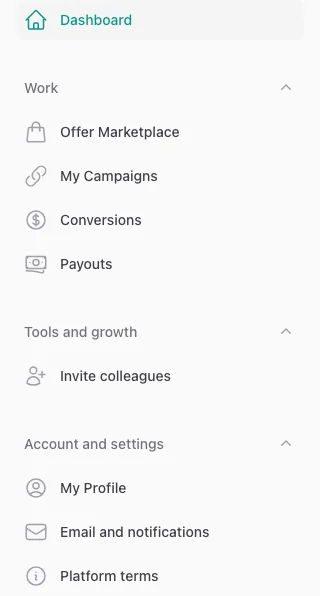
Dashboard menu — AffiliateCore DEMO, 2026-10-09.
Dashboard: understanding the figures
The top block shows the available balance, pending earnings and reserved amount. These are current fund balances, not income for a selected month. Do not count the reserved amount again as money available for withdrawal.
| Block | What it shows | How to use it |
|---|---|---|
| Clicks Today / Clicks (7 days) / Clicks (30 days) | Recorded click events, excluding rejected, reversed and disputed events | Check that traffic is arriving. A click does not prove a registration, deposit or payment |
| Conversions (30 days) | Registration, first deposit and repeat deposit events, excluding rejected, reversed and disputed events | Do not treat this as the number of unique players: one person can generate several events |
| Pending Earnings | The current pending balance | Check the status and hold date of the individual conversion |
| Available Balance | The current amount available under the withdrawal conditions | Reconcile it with “Payouts”, rather than the earnings chart |
| Top Offers by Earnings (30 days) | Up to five active offers with your results for the past 30 days, sorted by earnings | This is your ranking, not the full marketplace or a ranking of other publishers. The table may be empty if there are no results |
| Recent Conversions | Up to 20 recent records: offer, event, reward, status and time | Open “Conversions” for the full list and filters |
| Daily Earnings (30 days) | Rewards grouped by event date across the 30 days displayed; includes pending and confirmed | The pending portion may still change; the chart does not show completed payouts |
| Clicks & Conversions (30 days) | Two event series for 30 days | Compare their trends; more clicks without target actions call for a check of traffic and event transmission |
In the offer ranking, earnings include pending and confirmed, while the conversion count excludes clicks and impressions. Unpublished offers do not appear in the ranking, although their historical results remain in the conversions section. The identifier beside the name helps distinguish offers with identical names.
The figures update at different intervals. The clicks chart has automatic refresh and a refresh button; analytics data may arrive with a delay. A zero chart when the table contains records does not prove that there were no events: the analytics store may be delayed or unavailable. Check the period, event type and status, then give support the record identifiers. Do not create duplicate conversions to “fix” the chart.
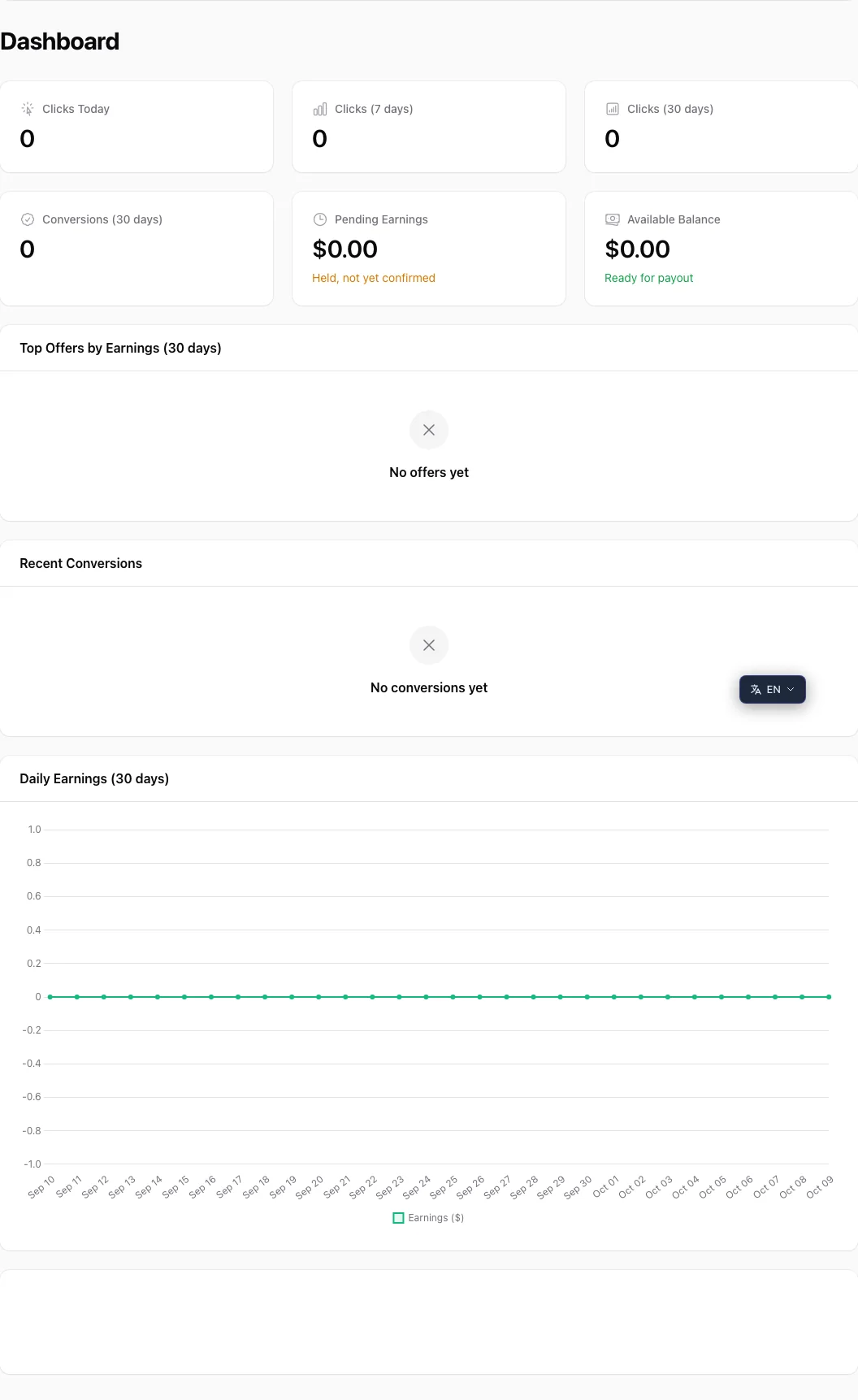
Dashboard: empty DEMO analytics — AffiliateCore DEMO, 2026-10-09.
Offer Marketplace: choose terms and apply
Use search and the payment model and GEO filters. The list shows the advertiser, model, reward, geography and hold period. Open the details before applying: the offer card contains a description, a direct project link, available creatives, restrictions, allowed traffic sources and attribution terms. A lack of creatives does not mean that any materials are permitted.
The direct project link is for reviewing the project. To send traffic, use the tracking link from your own active campaign. Otherwise, the click may not be associated with your account.
Apply using the available application button. If manual approval is required, wait for the advertiser's decision; submitting an application alone does not authorize a launch. If the dashboard reports insufficient offer funding, do not spend your advertising budget while waiting for access. After receiving an availability notification, check the terms and campaign status again. The notification itself does not replace approval.
Before launching, write down four things: the payable event, allowed countries and sources, restrictions on materials, and the hold period. A high rate is of no use if your source is prohibited or the required event is not transmitted. The differences between models are explained in the payment models guide.
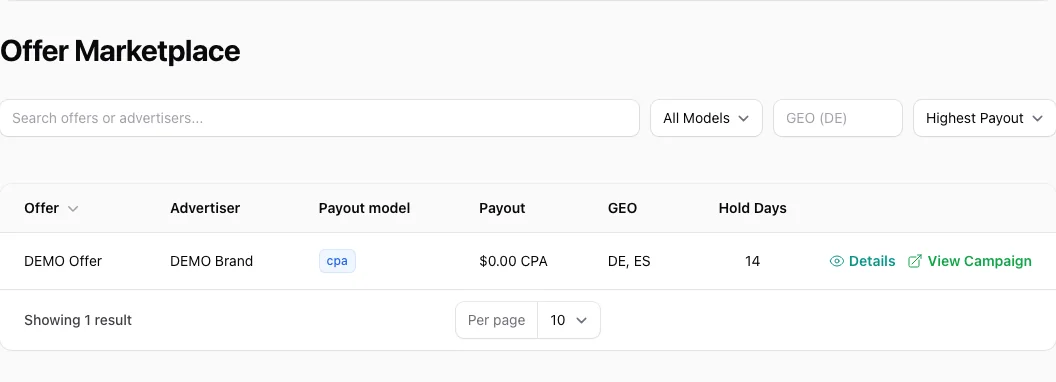
Marketplace: a demo offer — AffiliateCore DEMO, 2026-10-09.
My Campaigns: your working link and traffic status
An offer sets the general terms; a campaign connects that offer to you. In the table, find the campaign code, advertiser, status, clicks and payable clicks/impressions. Counts of ordinary and payable events can differ. Use the status filter to separate active campaigns from those awaiting approval or paused.
Open the campaign to find offer materials, the tracking link, an example link with sub1/sub2/sub3 and, where applicable, an impression pixel. Use these tags to distinguish sites and ads, for example by source, placement and creative variant. Do not put visitors' email addresses, phone numbers or names in them. These tags help with later reconciliation; their presence does not mean the menu contains a separate report for every sub-ID.
Editing lets you change the available campaign fields. Pause and resume actions depend on its status and your current access. Read the offer terms again before resuming. Do not treat an old saved link as a guarantee that the offer still accepts traffic.
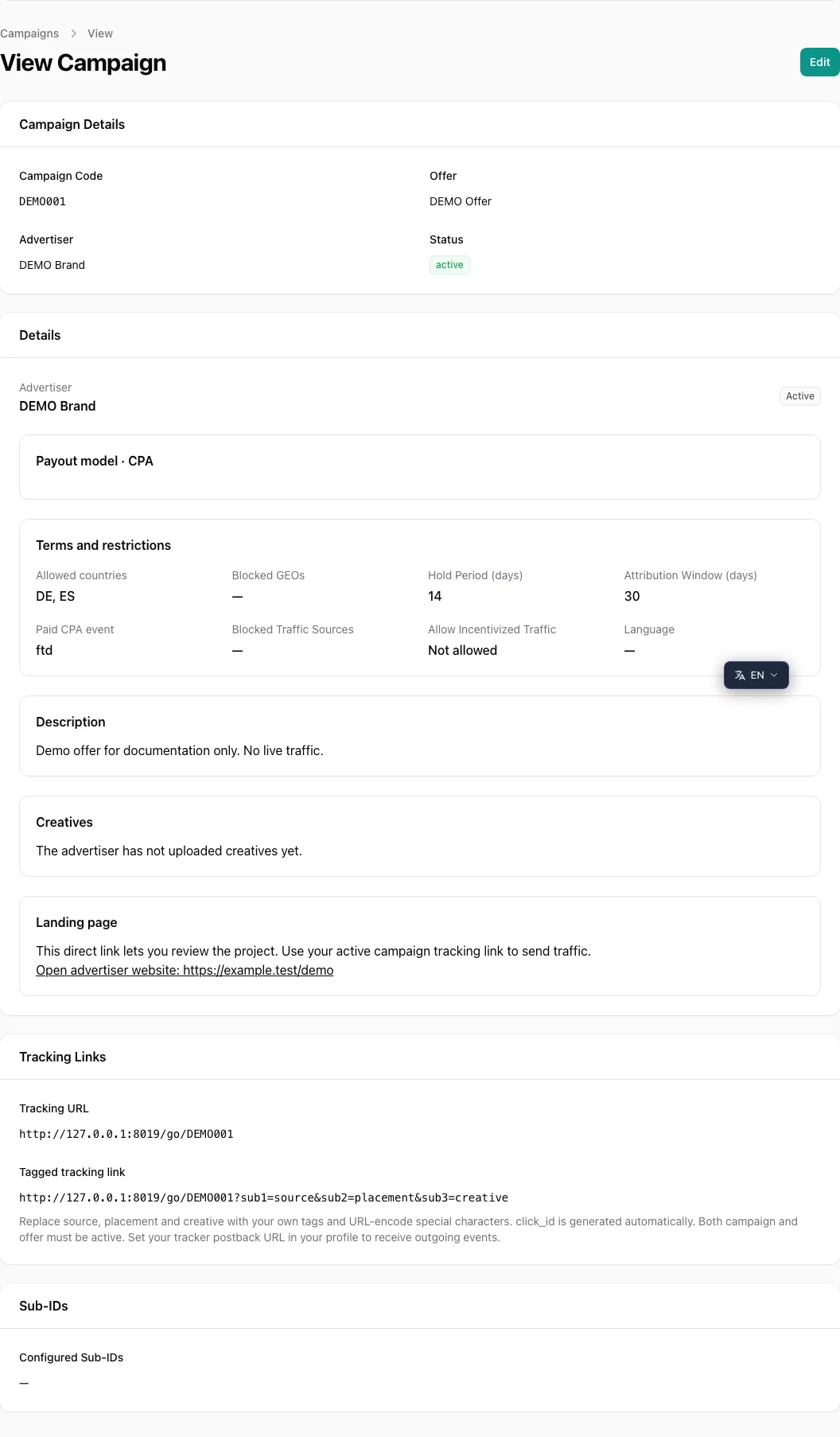
Campaign: materials and tracking link — AffiliateCore DEMO, 2026-10-09.
Conversions: results, statuses and holds
Filter records by offer, event type, status and date range. The list shows the reward, event date and end of the hold. Open a record to check the campaign, Click ID, original event amount and currency, and the rejection reason, if supplied. The original event amount and your reward are different figures.
| Status | How to interpret it |
|---|---|
| pending | The event awaits further processing; the reward is not yet final |
| confirmed | The event is confirmed; fund availability depends on the hold conditions and balance state |
| rejected | The event was rejected; read the stated reason |
| reversed | A previously recorded result has been canceled |
| disputed | The result is in dispute |
To investigate a discrepancy, keep the record ID, campaign code, event type, time and the relevant offer condition you expected to apply. Do not compare all registrations with the number of first deposits. A missing record may mean that the advertiser has not yet sent the event; a click alone is not enough to reconstruct the result. Follow the conversion troubleshooting checklist.
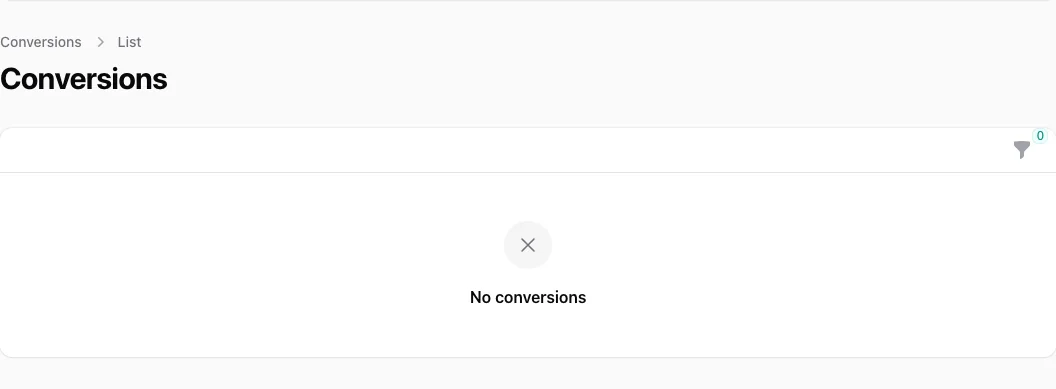
Conversions: empty list — AffiliateCore DEMO, 2026-10-09.
Payouts: available funds, addresses and history
This is the publisher's central place for both main and referral withdrawals. Check the available amount, current minimum, history and approved addresses here. Add an address in this section, not in your profile. If activation is pending, wait until the time shown. An address once saved in the old profile should not be considered automatically approved.
Before requesting a payout, verify the destination of the selected address and the form requirements. Use the minimum and messages shown in the current dashboard: old guidance about a fixed minimum or weekly schedule does not replace the current terms. A submitted request and a completed payout are different states. Check its status in the history; do not submit a duplicate just because processing takes time.
Main earnings and referral rewards are accounted for separately. The campaign earnings chart is not a statement of referral payouts. For more on fund states, see hold periods and available balance.
SmartLink and Landing Pages are currently hidden in the working menu. The next two sections are reference information for accounts granted access; they are not part of the available menu described above.
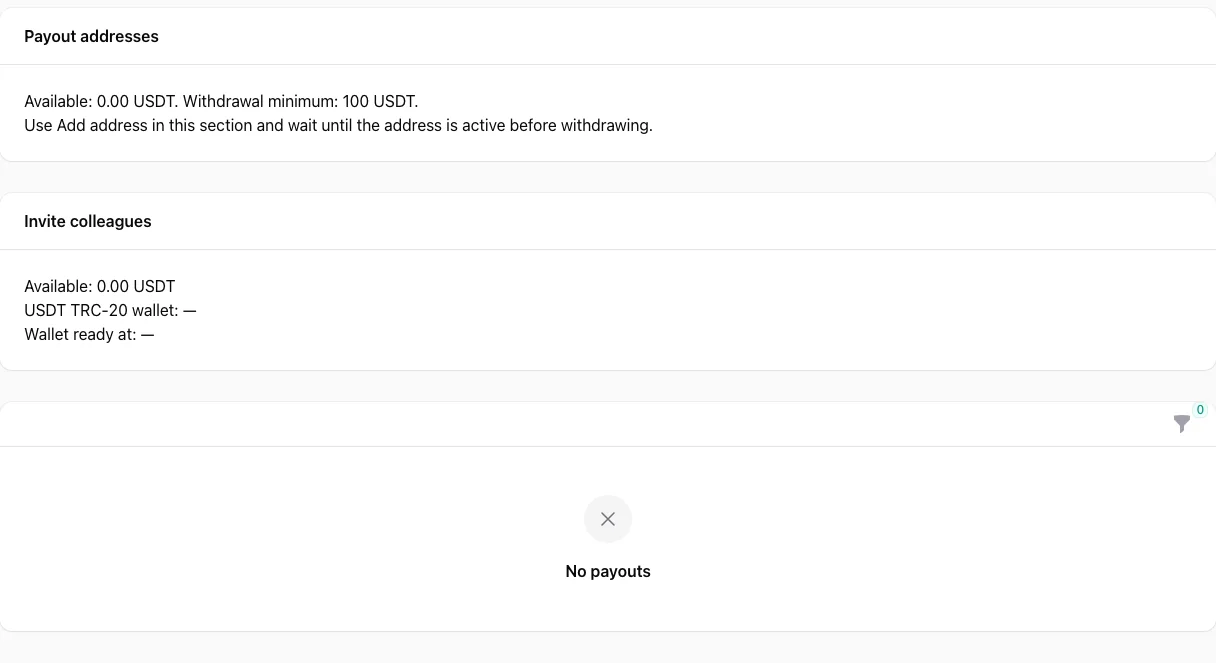
Payouts: address, balance and history section — AffiliateCore DEMO, 2026-10-09.
Conditional section: Smart-link Tokens
If this section is available, create a token with a clear label and use the supplied Smart-link URL. The list shows the label, token, link, creation date and last use. You can delete an unwanted token; first check where its link is being used.
SmartLink routes traffic. It does not guarantee a particular income, the availability of a suitable offer or permission to bypass account restrictions and advertising terms. If you need control over the specific offer, use that campaign's link. Do not confuse a SmartLink token with the advertiser's server integration secrets.
Conditional section: Landing Pages
If this section is available, choose a template and fill in the title, subtitle, button, bonus block and its terms, advantages, FAQ and disclaimer. In the settings, select an available offer, language and page address. Saving and publishing are different actions: check the record's status before sharing the link.
The list shows the offer, address, status, language, visits and modification date. Editing, publishing, archiving and automatic localization are available when access permits. Check the text and links before publishing; automatic translations also need review. Landing page visits are not the same as payable conversions. Do not promise bonus terms that are absent from the offer.
Invite colleagues: the referral program
This section contains your personal invitation link, the current program status and rates, invited participants, rewards and referral payout history. Amounts are separated into pending, available and reserved. Registration through an invitation does not mean an immediate reward: follow the rules shown in this section.
Publishers go to “Payouts” to set up an address and request a referral withdrawal. Do not add the referral balance to the main balance when calculating the amount of a single request. Access to the program depends on the account.
Profile: work details and your postback
Here you can edit your name, display name, phone number, Telegram, traffic sources and postback URL. The form marks required fields; after saving, check any remaining requirements. Describe your traffic sources specifically and update them when they change. Whether a source is allowed depends on the offer terms, not simply on its presence in your profile.
Your postback sends notifications to your own system. It does not replace the advertiser's event transmission to AffiliateCore. The exchange process is explained in the S2S guide. Publishers no longer have a separate account requirements menu item: the old link redirects to “Profile”.
Email and notifications
Check your email verification status and resend the verification email if it has not arrived. After verifying in another tab, refresh the status. If resending is rate-limited, wait for the indicated interval.
New offer emails and the general newsletter are independent settings. Changing one does not change the other; save the preferences you want. The bell in the top bar shows dashboard notifications, a separate way to learn about events. A new offer notification does not mean you have already joined that offer.
Platform terms and help
Read “Platform terms” for explanations of rewards, payments and the referral program. A particular launch also requires the offer's own terms. Change the language with the dashboard switcher. “Replay tour” in the user menu opens a short tour; it does not replace a detailed review of the terms. Support is available through the widget, and the AI assistant has a separate interface; do not send passwords or integration secrets in messages.
Daily checks before increasing traffic
- Check account warnings and the status of the campaign you need.
- Compare clicks and events for the same period and the same statuses.
- Open individual rejected or pending records instead of relying only on the chart total.
- Check the current terms and offer availability.
- Reconcile the available balance and payout history separately from expected earnings.
For example, when clicks rise but the FTD count stays unchanged, first check registrations, event transmission and arrival times. This alone proves neither poor traffic nor a platform error. It is an analysis sequence, not an automatic dashboard diagnosis.