How to launch an affiliate program as an advertiser
A guide to the AffiliateCore advertiser dashboard: company selection, offers and integrations, publisher applications, conversion costs, funding, analytics and access requirements.

The screenshots below were captured in real local DEMO dashboards with isolated synthetic data. Analytics and transaction history are empty; there are no real customers or payments. They show cropped working areas without avatars. Values and terms on DEMO screens do not replace the terms of your account. Some interface labels may remain in English.
How the advertiser dashboard is organized
Start by registering as an advertiser or logging in. After logging in, check the selected company: offers, conversions and analytics belong to the current brand. If you participate in several companies, switch to the right one first. The public website's contact form does not create a dashboard account or replace registration.
“Dashboard” is the first menu item. “Work” contains “Offers”, “Offer access applications”, “Conversions” and “Company balance”. “Tools and growth” contains “Funnel” and “Invite colleagues” (the referral program). “Account and settings” contains “Account details and access”, “Email and notifications” and “Platform terms”. Availability depends on your company role and the available modules. Do not try to reach a missing item through someone else's direct link.
This menu does not provide separate “Campaigns”, “Team settings” or “Advertiser profile” sections. The active campaigns counter on the dashboard does not mean there is a separate page for managing them. Complete account information under “Account details and access”, and review publisher access in applications.
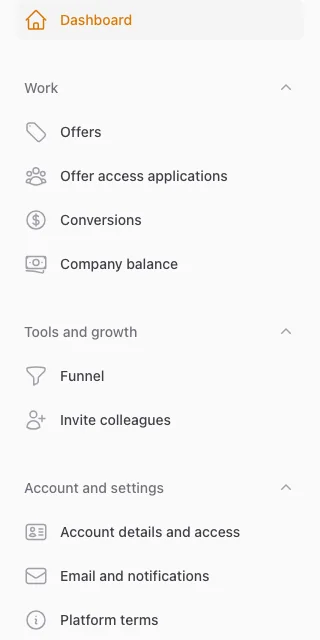
Dashboard menu — AffiliateCore DEMO, 2026-10-09.
Dashboard: the company and operational figures
In the top block, check the company name, your role and the company balance. This is the current balance, not spending over the past 30 days. Email verification and account requirement warnings explain what you need to do to access operational actions.
| Metric | What it counts | What it does not tell you |
|---|---|---|
| Active Offers | Offers belonging to the current company with active status | Drafts and offers awaiting review are not published |
| Active Campaigns | Campaigns with active status for the company's offers | This is not the number of unique publishers: one participant can have several campaigns |
| Spend (30d) | Accrued charges for events with confirmed status, by event date | This is neither the amount of top-ups nor a forecast of future spending |
| Pending Review | Offers in pending_approval | This is neither the publisher application queue nor pending conversions |
Performance per offer
The table includes active offers: name, model, number of campaigns, confirmed conversions over 30 days and spending. You can search names and sort individual numeric columns. The campaign count here includes related campaigns regardless of status, so it may differ from the active campaigns card on the dashboard.
The conversions column excludes clicks and impressions and counts confirmed events. Spending adds up confirmed advertiser charges, including those under the applicable payment model. With CPC/CPM, nonzero spending therefore does not require a nonzero number of registrations or deposits. A paused offer may be absent from this table even though its historical spending is included in the overall figure.
Conversion quality
The quality block uses events from the past 30 days, excluding clicks and impressions. “Total Conversions” includes different statuses. The approval rate is confirmed / total × 100%, and the rejection rate is rejected / total × 100%. Disputed events appear as a separate count.
These two rates need not add up to 100%: pending, disputed and reversed records remain. For example, with 100 events, 60 confirmed, 10 rejected and 30 pending, the display shows a 60% approval rate and a 10% rejection rate. This is an illustrative example, not data from a real dashboard. A card's color helps draw attention to a change, but does not prove partner fraud.
Spending, clicks and GEO charts
The spending chart groups confirmed charges by event date across the 30 calendar days displayed. This is a different view from balance top-ups. The clicks and conversions chart shows click events and reg/ftd/deposit events for 30 days, excluding rejected, reversed and disputed events. Pending events may remain in analytics, so you cannot compare this chart only with confirmed events without accounting for that difference.
The GEO chart shows clicks from the ten leading countries. The country with the most clicks does not necessarily deliver the most confirmed results. The chart does not prove a player's residence or fulfillment of all offer conditions.
Analytics charts use caching and do not update at the same time as tables. If figures differ, check the company, period, event date and set of statuses. Some period boundaries are calculated from the start of the day, others from the current time; this matters for events near a boundary. Zero values can also occur when analytics is unavailable. Reconcile individual records first, then contact support with their identifiers.
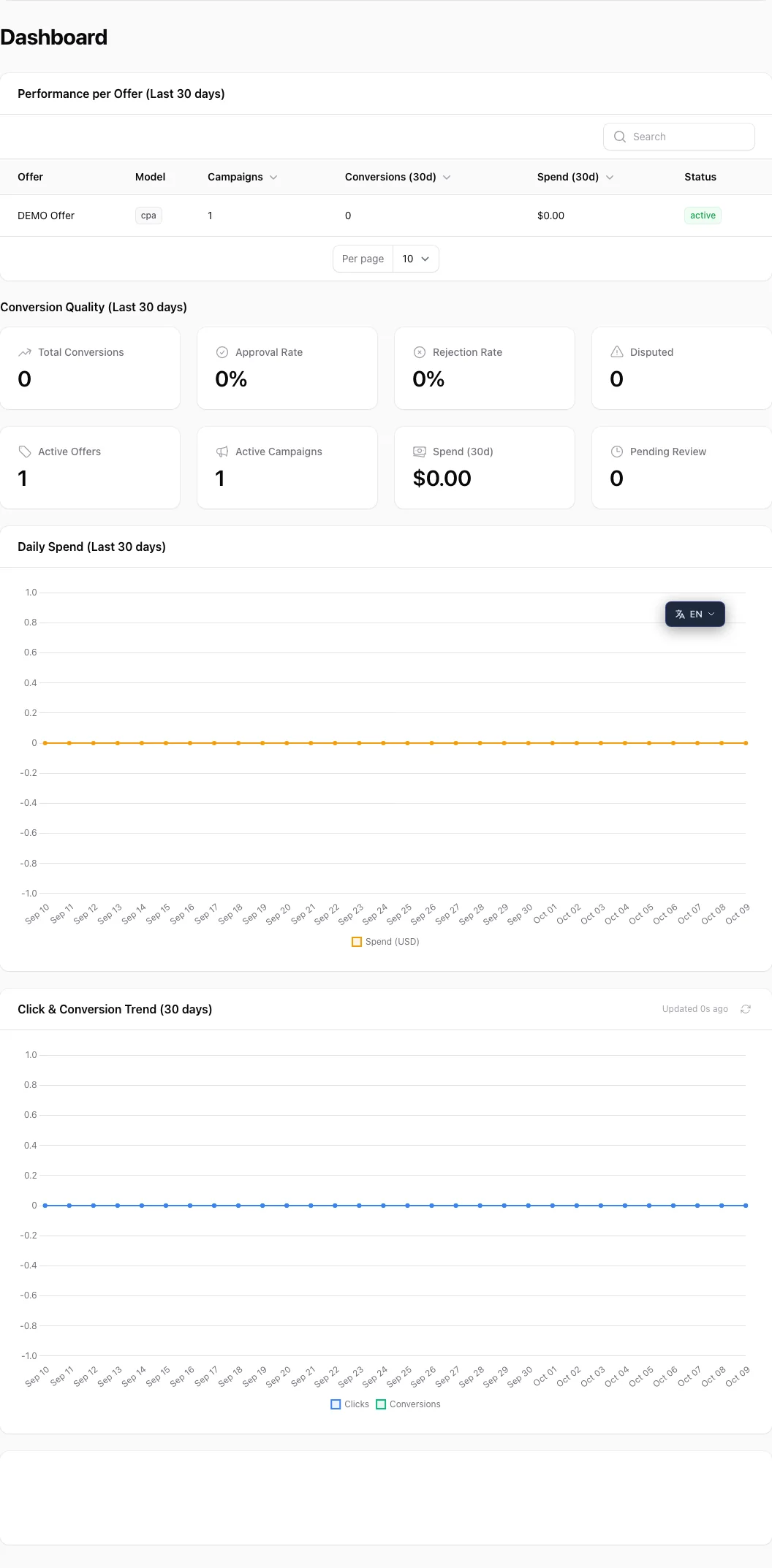
Dashboard: empty DEMO analytics — AffiliateCore DEMO, 2026-10-09.
Offers: terms, materials and launch
An offer describes the traffic you accept and what you are willing to pay for. Create it in “Offers” and complete the available fields: name, description, project URL, payment model and rates, GEO, source restrictions, hold period, attribution rules and materials. Choose automatic or manual partner approval if the form provides that option. The exact fields depend on the selected model.
Distinguish the event from its amount. For CPA, a fixed FTD rate is not the player's deposit amount; for RevShare, you need to define the calculation base. Model comparisons and examples are available in a separate guide.
A saved draft is not yet visible to publishers as an active offer. Use the publish action and check the resulting status: review may be required depending on the requirements. If rejected, read the reason, make corrections and repeat the available action. Do not invite partners to launch advertising until offer availability is confirmed. An offer restricted by moderation or archived cannot be considered ready to relaunch just because an old link exists.
Integration and reconciliation within an offer
Integration instructions are available when viewing an offer. Share them with your technical specialist through a secure channel: secrets must not appear in public advertising links, screenshots or messages with publishers. When integration credentials are missing, the owner can use the action to enable integration; this does not mean that events are already arriving.
Check how Click ID is linked to a user in your system, the event type and a stable transaction identifier. The request validation test mode does not create a real conversion or charge; it does not replace checking the complete chain in an isolated environment. The exchange process is explained in the S2S postbacks guide.
The reconciliation action compares submitted CSV rows with events for the current offer. Use the format described in the form's guidance. Reconciliation compares the data you provide; it does not create missing events, correct amounts or prove that your CRM data is complete. Investigate discrepancies using the specific identifiers, event types, amounts and currencies.
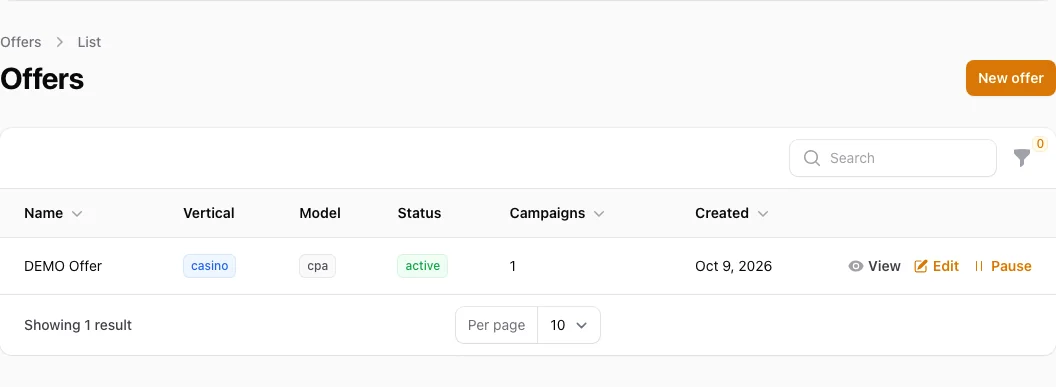
Offers: a demo record — AffiliateCore DEMO, 2026-10-09.
Offer access applications
This section is for offers requiring manual approval. A publisher selects your offer and requests access; you review the application. The list includes the publisher, tier, risk score, offer and application time. You can filter by tier, maximum risk score and application date.
Before approving, check that the proposed source fits the offer terms. Approval grants access but does not guarantee future results. Give a reason when rejecting an application. Use bulk actions only after checking the selected rows: one reason may not fit every participant. An empty list may mean there are no pending applications; it does not prove that there are no active partners.
The risk score is a supporting signal that needs context. Do not use it as a substitute for checking sources and individual events.
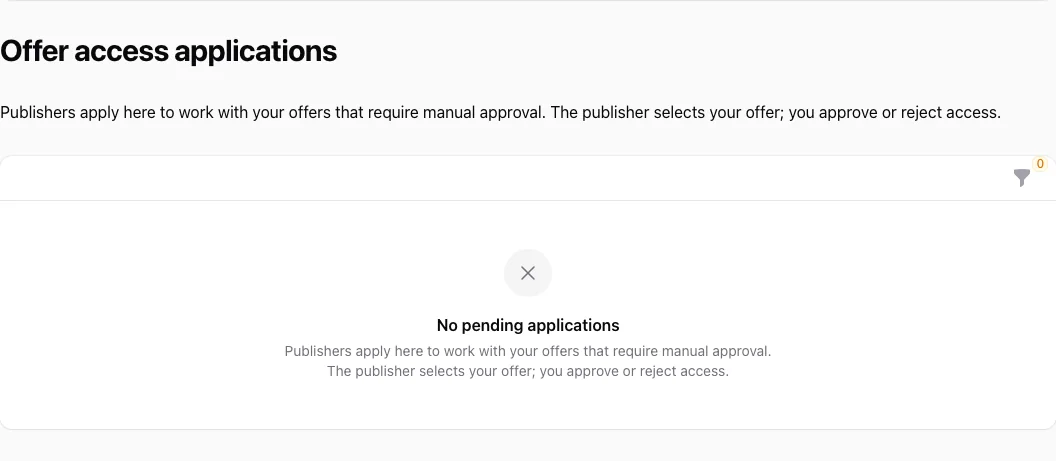
Applications: empty queue — AffiliateCore DEMO, 2026-10-09.
Conversions: reconcile the event and its cost
The table shows the ID, event type, external player identifier, original amount, advertiser charge, status, rejection reason and offer. Use player identifier search, the status filter and sorting on the available columns. Open a record to see its details.
The original amount of a submitted event may be expressed in its own currency; the advertiser charge is shown separately. The deposit amount, publisher reward and your spending are not interchangeable. Check commission rates in the platform and offer terms.
Pending means awaiting processing, confirmed means approved, rejected means declined, reversed means canceled, and disputed means in dispute. The current list provides a view action; it has no “dispute in one click” button. To investigate, send support the ID, offer, time and a description of the discrepancy. Do not resend an event with a new transaction number to fix a report: this makes reconciliation harder.
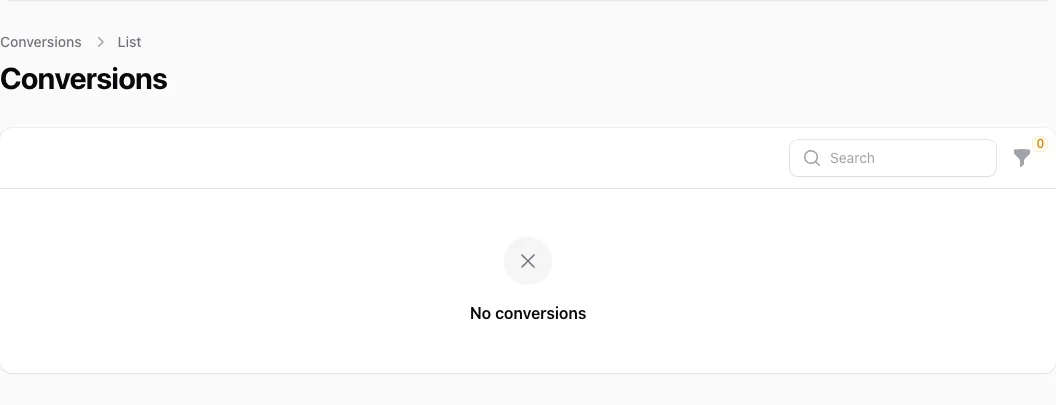
Conversions: empty list — AffiliateCore DEMO, 2026-10-09.
Company balance: funds and top-up history
This section belongs to the current company and is available with the appropriate permissions. Reconcile the balance against the planned launch and the history of top-up requests. Creating a request or proceeding to payment does not mean the funds have been credited. Check the final status in the dashboard; if an investigation is needed, use the request number and support's response.
Insufficient funding can prevent publishers from joining an offer. A published offer alone does not establish readiness to accept traffic. Take the terms, available methods and restrictions from the current form: fixed promises of speed or guaranteed crediting are inappropriate here. This guide does not recommend making test payments in the live dashboard.
Funnel: clicks, registrations, deposits and FTD
Select a 7-, 30- or 90-day window; the refresh button requests a fresh calculation for the selected window. The report covers all qualifying events for the current company. There is no separate offer filter on this page.
| Stage | What it counts | Percentage |
|---|---|---|
| Click | click events | Baseline row: 100% |
| Registration | reg events | reg count / click count × 100% |
| Deposit | deposit events | deposit count / click count × 100% |
| FTD | ftd events | ftd count / click count × 100% |
Every percentage is calculated against clicks, not the previous row. With 1,000 clicks, 100 registrations and 20 FTDs, the FTD percentage is 2%, not 20%. The rows count events, not a single cohort of unique people who completed the stages in sequence. This is therefore not a report of each player's individual journey, and repeat events can break the familiar expectation that each successive stage will be smaller than the one before.
When there are zero clicks, subsequent percentages are zero, while the baseline row may still show 100%. This is a display baseline, not evidence of a successful conversion. Rejected, reversed and disputed events are excluded. A zero funnel also calls for checking analytics availability and event transmission.
Use the report to identify questions to investigate. Clicks but no registrations: check the landing page and reg transmission. Registrations but few FTDs: check the event definition, when it occurs and whether it is sent. Aggregates alone are not enough to blame a partner or confirm an integration error.
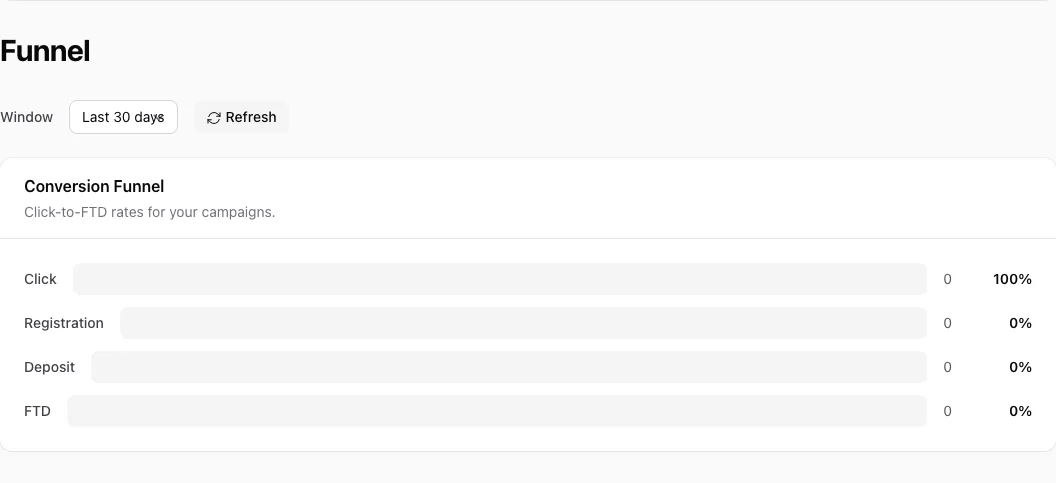
Funnel: period and zero values — AffiliateCore DEMO, 2026-10-09.
Invite colleagues: the referral program
A company owner with access to this section sees the invitation link, program status, applicable rates, invitations, rewards and referral payout history. Pending, available and reserved amounts are separate. Advertisers can also set up a referral payout address and withdraw here when the conditions are met.
Referral funds are not the company's advertising balance. Inviting a partner does not guarantee a reward: check the rules and the status of the specific reward. Company members without owner permissions may not see this section.
Account details and access: account requirements
Complete your name, phone number, Telegram, brand, legal name, registration country and website as requested by the form. Enter the country as an uppercase two-letter code. Current requirements determine mandatory fields, and the page shows any remaining reasons for restrictions. After saving, read the messages again: completing a profile does not always finish the account review.
Make sure you are editing the correct company. Entering text details does not replace a review of legal documents: a separate KYB section handles documents when available.
KYB and RG are described separately as conditional sections: they are not part of the available menu described above. If the corresponding item is hidden, these instructions do not mean that it can be opened directly.
Conditional section: KYB Verification
This item appears when the module is available. The form collects company information and license documents in sequence. Complete fields and upload documents following the wizard's guidance, then check the review status. Uploading a file and automatic parsing do not mean final approval.
Not every account is expected to see this item, and its absence alone is not an error. Follow the current dashboard requirements. A section or status within the platform does not replace checking the requirements applicable to your business.
Conditional section: RG Compliance
When the module is available, complete the checklist of responsible gaming measures actually in place, and provide the responsible employee's details and contacts if the form requests them. Check the displayed score and submit the form using the available action. Saved answers must reflect the company's real procedures.
The checklist score is the result of completing the form, not independent evidence of licensing or an independent audit. Do not tick boxes merely to obtain a higher score.
Email and notifications, terms and help
In “Email and notifications”, check your email verification and manage the available general newsletter subscription. After verifying in another tab, refresh the status. A resend rate limit means you need to wait. Do not apply the publisher instructions for new offer subscriptions to the advertiser dashboard: the roles have different settings.
“Platform terms” shows the company's applicable terms and markup, with an explanation of the calculation; individual offers may have their own terms. When planning a budget, account for the full advertiser charge, not just the partner's reward.
The bell contains dashboard notifications. Select the language with the switcher and start the short tour through “Replay tour” in the user menu. The support widget and AI assistant complement your work in the dashboard; do not share secrets or documents there unnecessarily. A tour tip does not replace the actions available on the current page.
Launch readiness check
- The correct company is selected and the displayed account requirements are complete.
- The offer's event, rate, GEO, sources, materials and hold period are agreed.
- The final publication status and funding readiness have been checked.
- Event transmission has been checked and the identifier reconciliation process defined.
- Publisher applications have been reviewed where manual approval is required.
- Analytics is compared over identical periods, accounting for statuses and different metric definitions.
If the result differs from your system, start with the missing conversions checklist. Specific identifiers and a description of the discrepancy are enough to begin the investigation; paying again or creating a new offer is not a diagnostic method.